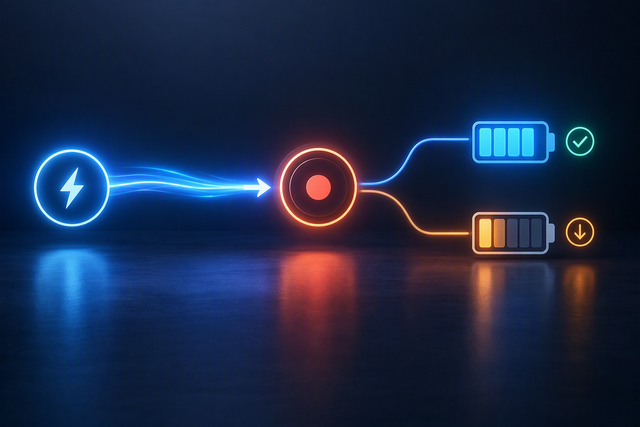
A phone video monitor is usually the better starting point when you need flexible placement, some distance from the phone, or quick repositioning while filming yourself. Wired is often the more predictable option for a close, mostly static setup—provided your phone's documented video output, adapter path, and cable routing are confirmed. Neither method is universally better: your phone, camera app, monitor, case, mount, power setup, and shooting distance determine whether you can reliably see the rear camera while recording.

Choose a Phone Video Monitor by Shooting Workflow
For a static talking-head setup, either connection can work. Wireless gives you more freedom to place the monitor and keeps the phone-side setup cleaner; wired provides a direct connection with fewer wireless variables. Movement, distance, blocked ports, and how quickly you need to reset the rig usually determine the better fit.
| Wireless | Wired |
|---|---|
| Fast to reposition and easier to place away from the phone | Predictable close-range connection when output and adapters are verified |
| Useful for solo creators who need to step away from the tripod | Useful for mostly static tripod work and immediate framing feedback |
| Requires pairing, device and app support, monitor power, and a real-world delay check | Requires documented phone video output, the correct adapter or cable, and careful cable routing |
| Avoids a cable running from the phone to the monitor | Can create cable-reach, strain, port-access, and accessory-clearance problems |
| Best when flexible framing matters more than perfectly immediate feedback | Best when framing stability matters more than cable-free mounting |
A supported iPhone workflow can use an external display to monitor video while recording in Final Cut Camera, but Apple's Final Cut Camera guide applies to supported iPhones and that app—not every phone or camera app. Android and other iPhone workflows need their own model and app verification.

If you are comparing a wireless vs. wired phone monitor for video, start with the way you shoot. A solo creator filming from several feet away may prefer wireless, while someone seated close to a tripod may prefer wired. A wireless magnetic monitor can be a useful category to investigate, but the product page should not be treated as proof of compatibility, latency, battery life, or case support.
Compare Delay, Pairing, and Range Before Recording
Wireless monitoring can add pairing friction and setup-dependent preview delay. Wired monitoring removes those wireless variables but introduces cable and port constraints. Judge the difference by the shot: broad composition checks can tolerate more delay than fast movement, precise gestures, or tightly timed action.
Wireless transmission is not guaranteed to feel real-time. One independent test of a wireless phone monitor found that delay varied with the shooting setup and could become significant in some modes; that result is a bounded example, not a universal benchmark. The Digital Camera World wireless-monitor review supports treating a wireless preview as framing feedback until your own phone, app, recording mode, and environment prove otherwise.
Pairing is another potential failure point. Before an important take, connect the monitor, open the intended camera app, start recording, and watch for delay or a dropped view as you move through the shot. If the monitor only confirms headroom and general composition, a small setup-dependent lag may be acceptable. If you need to react to rapid movement or timing, even noticeable delay can make the monitor less useful.
Range matters mainly when you move away from the phone. Wireless avoids the physical reach of a display cable, but you still need to test the intended distance for pairing stability, delay, battery behavior, and clear framing. At close range, maximum range may matter less than whether the monitor stays visible and the phone remains securely mounted.
Wired monitoring removes wireless pairing from the workflow, but a direct connection is not friction-free. A cable can pull on the phone, limit where you stand, strain a connector, cross a grip zone, or occupy the port needed for charging, audio, storage, or another accessory. If you use a wired path, route it before the take and check the connector with the phone in its final position. For another approach to remote framing, see this second-phone viewfinder setup, but verify its workflow against your intended app and equipment.
Check Ports, Power, and Mounting Constraints
The practical choice is a complete-rig decision. Verify the phone's video-output path and app first. Then check charging and accessory access, case and mount clearance, monitor visibility, power for the full session, and framing in the final orientation.
Confirm the Phone's Port and Adapter Path
A matching USB-C or Lightning connector does not by itself prove that a wired monitor will work. The phone model must support the relevant video-output path, and the cable or adapter must match the monitor's input; Apple's iPhone connection guidance illustrates why display support is model-dependent. Apply the same rule to Android: do not assume that a USB-C port provides external video.
Check the full path before buying or mounting anything: phone output, adapter, monitor input or transmission method, camera app, and any required permissions. Then confirm that the connection leaves room for your microphone, storage, charging cable, or other accessory. Apple's display-adapter guide notes that some iPhone display adapters include a separate charging port, but that is an adapter-specific feature rather than a universal one.
A wireless setup reduces dependence on a display cable at the phone, but it still requires the phone, app, monitor, and wireless method to work together. “Wireless” does not eliminate compatibility checks; it changes which part of the system needs verification.
Plan Power for the Whole Recording Session
A monitor that connects successfully can still be a poor fit if the power setup interrupts the shoot. Plan for both the phone and monitor, and account for any adapter or power bank that changes access to the phone's other ports.
- Check the phone's starting charge and expected recording duration, rather than planning only for the monitor.
- Confirm how the monitor is powered or charged and whether its cable can reach without blocking the viewing position.
- Test the phone, monitor, adapter, power bank, microphone, and storage arrangement together for the intended session length.
Wireless adds a separate powered device to the setup. Wired may make charging possible through some adapter paths, but only when that specific phone-and-adapter combination supports it. A power solution that works on a tabletop may become awkward once the phone is mounted vertically or placed inside a rig.
Match Mounting to the Case, Rig, and Camera Position
A monitor is only useful if it attaches securely and remains visible from the creator's filming position. Check magnetic alignment, case thickness, ring placement, grip clearance, cable strain, and orientation as one physical arrangement. Android connected-display guidance shows why connected-display behavior should be tested with the actual app, display configuration, and orientation rather than assumed.
| Setup condition | Wireless magnetic implication | Wired implication |
|---|---|---|
| Case or ring alignment | Confirm the magnetic surface aligns and holds the monitor in the intended viewing position | Confirm the case does not block the connector or force the phone off-center |
| Rig placement | Place the monitor where it is visible without blocking the rear camera or controls | Leave room for the cable to exit without crossing a grip or pulling the phone |
| Portrait and landscape | Recheck the monitor's position and visible frame after rotating the phone | Recheck cable strain, connector clearance, and framing after rotating the phone |
| Accessory clearance | Make sure the mount does not conflict with a microphone, light, or handle | Make sure the cable does not occupy the only useful accessory or charging path |
A preview can also be cropped or letterboxed when its dimensions differ from the display area, depending on the app's scaling behavior, as the Android preview guidance helps explain. That does not automatically make the setup unusable; it means you should confirm that the visible frame still shows the headroom, product area, or action you intend to record. A dual-handle phone rig may be a useful category for organizing a monitor and other accessories, but its page does not establish that every phone, case, or monitor arrangement will fit.
Make the Choice for Your Actual Recording Setup
Shortlist wireless when placement freedom and fast repositioning matter most. Shortlist wired when the phone stays near the rig and its output, adapter, power, and cable path are verified. If both seem plausible, let a complete test with the intended phone and mount decide rather than choosing from the connection label alone.
- Identify distance and movement. If you stay near a tripod for a static talking-head shot, wired is more practical to investigate. If you step away, reposition often, or need a cleaner phone-side setup, wireless deserves priority.
- Set your tolerance for delay and friction. Decide whether the monitor only needs to confirm composition or must provide immediate feedback during movement. For the first use, pair the wireless system and record a short test; for wired, move through the shot with the cable routed exactly as it will be during filming.
- Verify the physical path. Confirm the phone model, documented video output, camera app, monitor method, adapter, charging access, case or magnetic alignment, cable clearance, and monitor position. If any one of these remains unknown, the setup is not yet verified.
- Run the complete framing test. Use the intended recording mode, distance, lighting environment, orientation, case, mount, microphone, and power arrangement. Check the frame while seated or standing where you will actually perform, then rotate the phone if both portrait and landscape matter.
Choose wireless if the test shows stable pairing, usable framing feedback, and acceptable power behavior at your working distance. Choose wired if the direct path stays connected, preserves the accessories you need, and gives you the framing stability your shot requires. If neither passes, keep researching the phone-and-monitor combination or change the mount and cable plan before buying.
After the connection decision is clear, you can browse smartphone filmmaking kits or vlog tripods as optional next-step categories. Use those collections to organize the rest of the rig, not as evidence that a particular monitor will work with your phone.
FAQs
The right phone video monitor setup depends on your phone, app, monitor, mount, power arrangement, and shooting distance. Use the checks below to confirm compatibility and framing before recording.
Are Wireless Selfie Monitors Delayed?
They can be, and the amount varies by setup. Test a short movement-heavy clip before relying on wireless for tightly timed actions.
Do Wired Phone Monitors Need a Special Port or Adapter?
Usually, they need a documented phone video-output path plus the correct adapter or cable for the monitor's input. Check charging and accessory access, then verify the camera app before treating the phone as compatible.
Can a Magnetic Selfie Monitor Work With a Phone Case?
Only after testing case thickness, magnetic alignment or ring placement, camera clearance, and mount strength together. Rotate the phone in the final viewing position and confirm the frame remains visible.
Is Wireless or Wired Monitoring Better From Farther Away?
Wireless may be more convenient because it avoids cable-reach limits. At the intended distance, test pairing stability, preview delay, battery behavior, and monitor visibility; distance alone does not guarantee a reliable workflow.