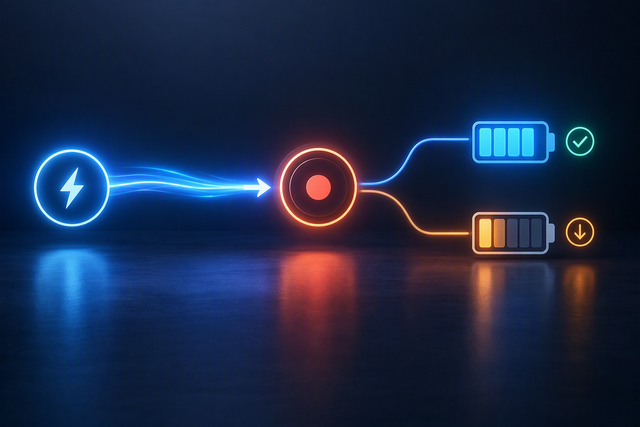
When a camera develops a buzzing hum in its audio while charging from a power bank, a shared power and ground connection is a plausible path for the noise, but it is not confirmed until you test it. The fastest check is to record a short clip on the camera's internal battery, then repeat the exact same clip on USB-C power without touching the microphone, cable, or gain setting. If the buzz shows up only with USB power connected, the power path deserves the next round of tests; if it is already there on battery, the audio chain is the more likely suspect.

Why USB-C Power Can Add a Buzz
USB-C power and camera audio can share the same ground line, creating a shared return path where small voltage differences turn into audible hum, hiss, or whine. That behavior is detailed in engineering guidance on ground-loop noise coupling in USB audio systems, though switching noise from the power converter can produce a similar buzz.
A USB-C power delivery converter switches its output on and off rapidly. That switching can place electrical noise on both the power and ground conductors, which the USB cable can carry close to nearby audio wiring.
The test that separates these two causes changes only the power connection. Leave the microphone, recorder, gain setting, and cable layout exactly as they are, then compare a battery-only recording with the same setup running on USB-C power. A buzz that appears only with USB power attached points at the power path, while a buzz that persists on battery power points at the audio chain.

Run a One-Variable Troubleshooting Checklist
Isolate the cause by changing one connection at a time and recording a short clip after each change. Keep every other part of the rig untouched so the result actually tells you something.
- Battery-only baseline. Record with the camera on its internal battery and the same microphone or recorder attached. This is your clean reference clip.
- Reconnect USB power. Plug the power bank back in without changing anything else. A new buzz here means the power path is involved.
- Swap the power bank. Try a second power bank if one is available. A different result points at the specific unit rather than USB-C power in general.
- Swap the charging cable. Use a different USB-C cable with the same power bank. A change here implicates the cable's shielding or construction.
- Reroute and separate the cables. Move the USB power cable away from the microphone or audio cable and avoid running them side by side. An improvement here points at cable coupling, not the power source itself.
- Substitute or bypass the microphone, recorder, or audio cable. Test a different microphone, recorder, or audio cable while keeping the power setup unchanged. A buzz that follows the audio hardware, not the power connection, means the audio chain is the real cause.
- Repeat under the load you expect during the real recording. Run the same test with any lights, monitors, or accessories active that you will actually use. Noise that only appears under load needs the full rig present to reproduce.
Write down the result of each step instead of relying on memory. The first change that removes or clearly alters the buzz tells you which part of the setup to fix next.
Match the Test Result to the First Fix
Resolving camera audio buzzing when connected to power bank setups starts by treating the earliest clear change as your answer instead of testing further.
- Power-dependent noise: the buzz appears only with USB power connected. Keep the audio setup unchanged and try a different power source, a different charging cable, or moving the cables apart before buying anything.
- Routing-dependent noise: moving or separating the cables reduces or removes the buzz. Keep the power and audio cables apart going forward; this does not prove anything about cable shielding quality on its own, just that the physical layout was involved.
- Audio-chain noise: the buzz remains even on battery power. Bypass or substitute the microphone, recorder, or audio cable before treating USB power as the cause, since the charger is not responsible for a fault that exists without it.
- No-change or ambiguous result: none of the swaps change anything. Return to the last configuration that recorded clean audio and avoid stacking accessories or filters without a new, specific hypothesis to test.
Use a Ferrite Choke Only as a Targeted Test
A ferrite or common-mode choke is worth trying only after the checklist shows the buzz changes with the USB power path, not as a first response to any hum. Manufacturer guidance on suppressing noise from USB-PD converters explains that a switching converter generates radiated and conducted switching noise, which is why a correctly placed choke can sometimes help.
When the USB Power Path Is the Suspect
If the buzz or a whine changed when you swapped power sources or cables in the checklist, a ferrite test on the power cable is reasonable. Use the actual charging cable and follow the component's specified placement, since effectiveness depends on where it sits relative to the connector. Judge the result only by the recorded audio with your camera and microphone, not by whether the power bank still appears to charge normally.
When Not to Keep Adding Ferrites
If the recording shows no change after the test, the fault is more likely a shared low-frequency return path or something in the audio chain itself, not high-frequency cable noise a ferrite is built to catch. Do not clip ferrites onto USB data conductors casually or assume one clamp type covers every frequency range. At this point, go back to the battery-only branch or move on to a compatible isolation option instead of stacking more filters.
Choose Battery Isolation or a Compatible Isolator
Battery-only operation is the simplest fix to test, and a properly matched isolator is the next step when the shared power and audio path is still implicated. Which one applies depends on whether your audio signal is analog or digital.
Use Battery-Only Operation as the Simplest Isolation Test
If the battery-only recording from your checklist was already clean, running on battery for the actual take can be a practical workaround whenever runtime allows it. A separate battery source changes the power arrangement, but it does not by itself prove true galvanic isolation between the audio and power grounds. Our MA93 Portable Charging Handle can be evaluated as a separate battery source for a compatible camera setup, though its battery and output specs do not guarantee quiet audio with every camera and microphone combination.
Use an Isolator Only When the Signal Path Matches
Isolation devices are not interchangeable with each other. A 1:1 audio transformer applies to an analog signal path, while digital audio needs a purpose-built digital isolator instead. Before connecting either one, verify the device's wiring, voltage and current rating, connector type, signal type, and, for USB devices, its data behavior against your camera and recorder's own documentation. Stop before inserting any inline power or audio device if you cannot confirm that compatibility for your actual gear; guessing from connector shape alone risks damaging equipment or losing needed functions. If you are also troubleshooting a power bank that seems incompatible with an accessory, related USB-C power compatibility issues can cause similar-looking symptoms.
Verify a Clean Continuous-Power Recording
Confirm readiness with one pass or fail test using the complete rig under real conditions, not a quick idle check. A USB-C connector's shape alone does not guarantee a cable's power or data capability, since USB-C cables vary in what they actually support, so the whole combination needs its own check.
- Connect the entire rig exactly as you will use it: camera, power bank, charging cable, microphone or recorder, and any filter or isolator you have decided to keep.
- Make a representative recording, including a few quiet passages and the load you expect during the real session.
- Monitor with headphones through the actual recording path rather than trusting the camera's charging indicator alone.
- Repeat once the setup reaches the conditions of the real take, such as extended runtime or additional accessories drawing power.
- Treat the result as pass or fail: clean audio with normal charging and data behavior means the setup is ready. Any recurring buzz or odd power behavior means revert to the last configuration that tested clean instead of adding another accessory. For longer sessions, long-form power planning can help balance runtime against the setup you have just verified.
FAQs
Can a power bank cause camera audio hum even if the camera charges normally?
Yes. Charging function and audio cleanliness are separate outcomes, so a power bank can still be adding noise to the audio path even while it charges the camera correctly. Confirm this by recording the same setup on battery power and then again on USB power; a difference between the two points at the power connection, not a charging fault.
Will a ferrite choke always remove a ground-loop buzz?
No. A ferrite's effectiveness depends on the noise frequency, the component itself, and where it is placed, so it works best on the high-frequency cable noise a USB-PD converter can create, not on every kind of hum. If the recorded result does not improve after a proper test, return to the battery-versus-USB comparison or the audio-chain checks instead of trying additional filters.
Can I use any USB-C isolation adapter with my camera and microphone?
No. You first need to know whether your audio signal is analog or digital, since a 1:1 transformer only suits analog audio and digital audio needs a dedicated digital isolator. You also need to verify the device's power, connector, signal, and data requirements against your specific camera and recorder before connecting it; a matching connector shape is not enough to confirm compatibility.
How should I test a powered camera rig before a long recording?
Test the complete rig, including the actual camera, power bank, cables, microphone or recorder, and any filter or isolator, under the load and conditions of the real session. A short clip recorded while the setup sits idle can miss noise that only appears once the accessories are active or the recording runs long. Approve only the configuration that stays clean through that full test.